
USER MANUAL
MENU
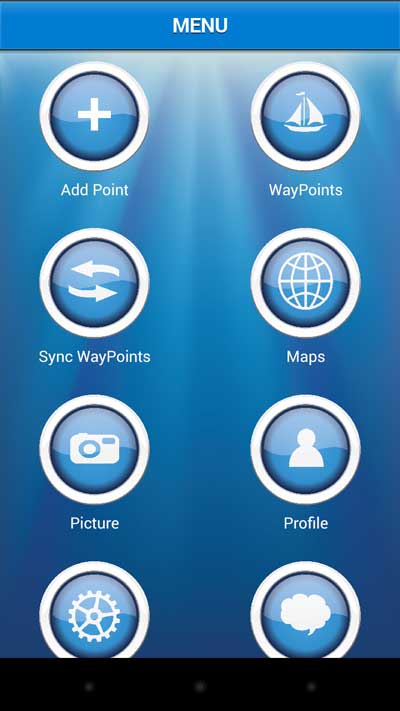
The main menu is the starting page of the application, is the basis for access to all of its features and screens for navigation.
Add Point – Create routes and waypoints.
WayPoints – List of routes and waypoints for navigation
Maps – Map Free.
Sync Waypoints – Create backups on the server routes and waypoints.
Profile – User registration and login.
Picture – List of photos of the user community.
Group – Social Functions for creating and sharing information.
Download Map – Download offline map
Morse – Tool for morse code.
Harbors – List of ports.
Anchor Alert – Function to prevent the drift of the anchor.
Moon – Phases of the Moon
E-mail – Send mail to contact@fishpoints.net
Exit – Close application
ADD NEW WAYPOINTS
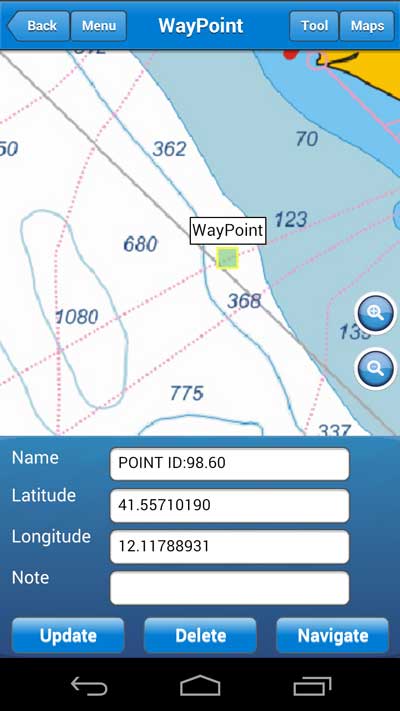
For add a new waypoint in the main menu select add point, you will see a screen with two options for create waypoints or routes.
Tap on Add Waypoints, you’ll see a screen with map and latitude and longitude.
Waypoints begin with the current position, to move it click the green rectangle and select move, after click on map where you like insert the waypoint.
You can write the coordinate into the text box to latitudie and longitude, after that the map will be updated.
ADD NEW ROUTE
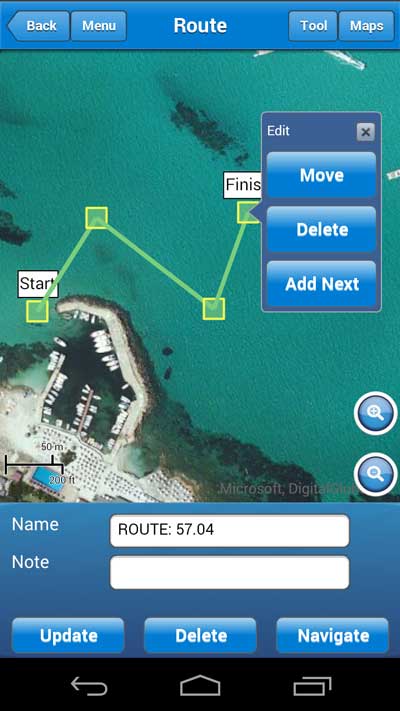
For add a new route in the main menu select add point, you will see a screen with two options for create waypoints or routes.
Tap on Create Route, you’ll see a screen with map and information about name and note.
Click on map for create the first point, after the first point you need click on point in green rectangle for open three option: move, add next, delete.
Move – you can move point
Delete – you can remove point
Add Next – you can create a new point where you will click.
DOWNLOAD OFFLINE MAP
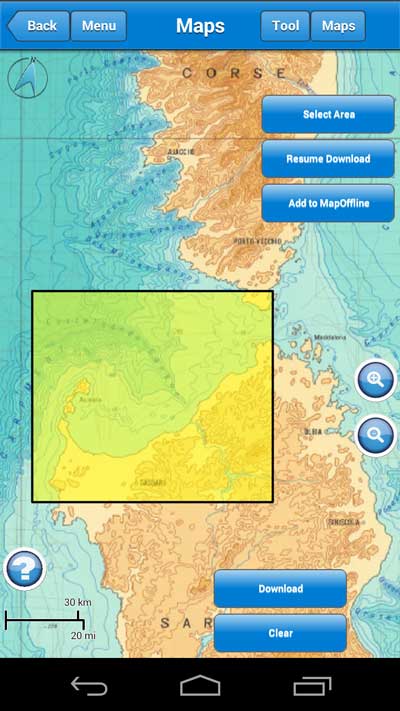
Select download map from menu, you see a screen with map and three buttons: Select Area, Resume Download, Add to MapOffline.
Before you download map choose the map you like download, use the button “Map” on top, when you are ready click on Select Area (Max 40miles diagonals) and draw an rectangle on map, if you like the area click on download.
Follow the message on popup and wait the download is finished.
If you like stop and resume the download you can do that with button Resume Download.
When you end the first download you can add more parts of map with the button Add to MapOffline, for select and download other areas.
Remember for use offline map in the navigate view or map view you select “Offline Maps” in the button “Maps” on top.
NAVIGATE
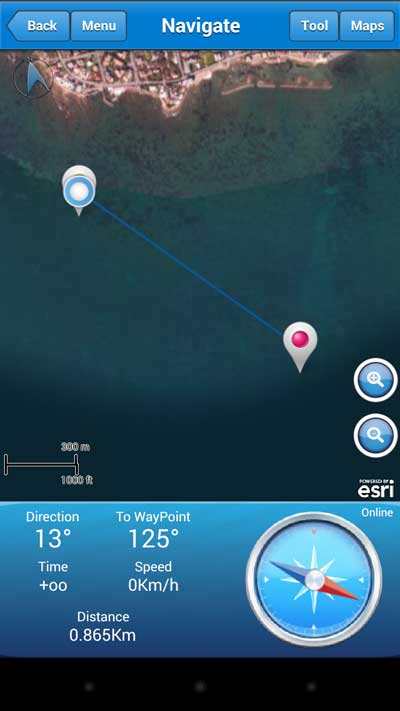
You can navigate waypoints and route, when you are in the navigate screen view, you receive information about speed, direction, time to arrival.
Marine Navigation draw an ideal route from start and end of the route. In bottom right you can see compass where you need to go for arrival to the waypoint.
While navigating will be track on the map the route with dotted lines.
On top you can click on button “Tool” to use the functions like “follow current position” or “elevation chart”, the elevation chart draws altitude and deep in meter.
Remember for use offline map in the navigate view select “Offline Maps” in the button “Maps” on top.
PROFILE
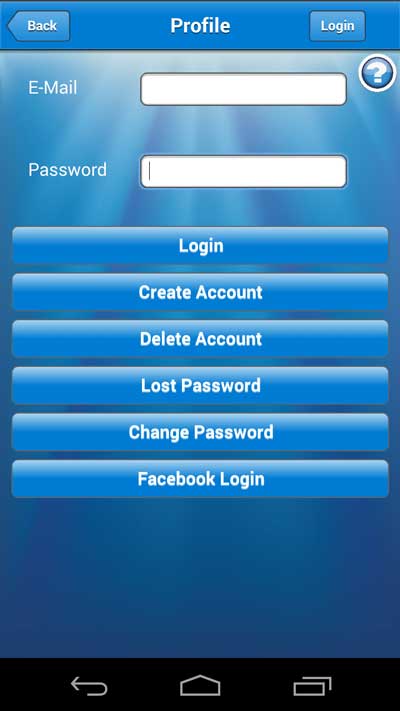
For navigate you don’t need profile, but for save waypoints and route on server or join the community is necessary.
You need a valid address e-mail and password, but if you like you can login with facebook.
For create a new profile you click on “Profile” in main menu, click on create account, insert e-mail and password. You will receive in your inbox mail the account information and the link to visit to activate the account.
SETTING
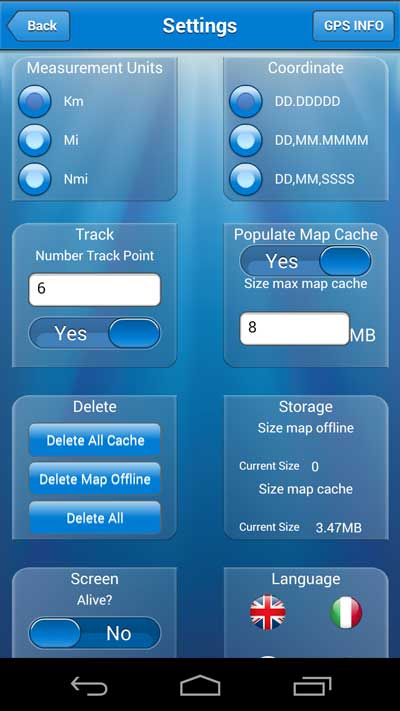
For personalize and set the preferences, click on main menu button “Setting”.
There are many parameters to personalize:
Measurement Units – Choose between the units for distance like miles, knot, kilometer.
Coordinate – Choose between decimal, decimal and minutes, decimal and minutes and second.
Track – Insert the number of dot line in the navigation view for indicate the route covered, if you don’t like see the track you can disable.
Popolate Map Cache – Marine Navigation save for you maps and marine chart, when you see the tiles of maps the application creates an automated archive, when smartphone cannot connect you can navigate on maps preloaded. You can disable and choose the size of map cache.
Delete – clean cache or delete information of application.
Storage – indicate the size of application file.
Screen Alive – switch off screen stand-by of your smatphone.
Language – Select other language.
Download Map – if you like download map in 3G connection.
Maps Sea Marker – Show on maps lighthouse and sea symbol.
Scale Interface – Zoom interface, ideal for tablet or hight definition smartphone.

